
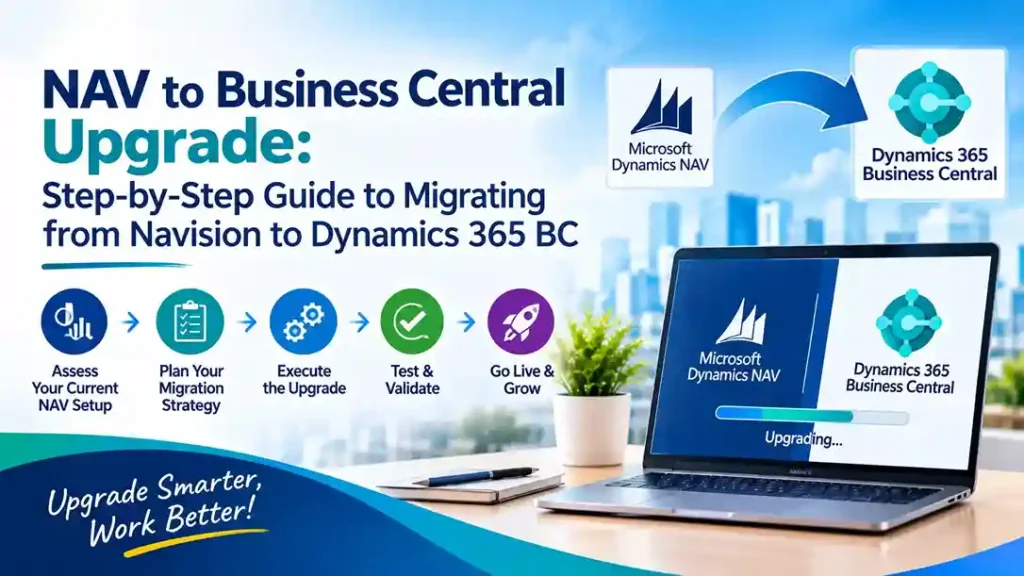
Microsoft Dynamics NAV support is ending, and the clock is ticking for every organization still running Navision. Extended support for NAV 2017 ends in January 2027, and NAV 2018 ends in January 2028. After those dates, no security patches, no compliance updates, and no Microsoft assistance.
But upgrading from NAV to Business Central is not a simple version bump. There is no direct cloud migration from NAV, and every supported path requires careful planning, customization triage, and a partner who has done this before. This guide walks through the process step by step.
Why Upgrade NAV to Business Central Now
Business Central is NAV’s successor—built on Azure, extended through AL extensions, and updated automatically in the cloud. The practical advantages compound annually:
Security and compliance. Once NAV support ends, your ERP becomes a liability. Microsoft disclosed a critical vulnerability affecting NAV 2018 in July 2026, requiring a patch that will eventually stop arriving.
No more upgrade treadmill. Business Central online updates twice yearly without disruptive upgrade projects. On-premises NAV required manual upgrades every few years.
Modern capabilities NAV cannot match. Power BI reporting, Power Automate workflows, Copilot AI assistance, and Microsoft 365 integration are native to Business Central.
Talent availability. NAV developers are reskilling to Business Central. Finding NAV expertise becomes harder and more expensive every year.
The Supported Upgrade Path from NAV to Business Central
There is no direct jump from NAV to Business Central online. Every route passes through Business Central version 14 on-premises first.
| Your NAV Version | Upgrade Path |
|---|---|
| NAV 2015–2018 | Upgrade to Business Central 14 → then version 25 or later → then migrate to Business Central online |
| NAV 2013 / 2013 R2 | Upgrade to NAV 2018 first → then follow the route above |
| NAV 2009 | Upgrade to NAV 2013 or 2015 → then NAV 2018 → then follow the route above |
Each on-premises upgrade involves two parts: application code upgrade, then data upgrade. From version 26 onward, Business Central 14 cannot upgrade directly to the latest release—the path runs from 14 to 25 and then onward.
Step 1: Choose Your Migration Approach
Two primary approaches exist, with a hybrid option common for mid-market organizations.
Full technical upgrade. Carries all data, history, and customizations forward. C/AL code is converted to AL extensions. Best for organizations with clean data and customizations that still deliver value.
Reimplementation. Starts with a fresh Business Central environment and migrates only essential data—master records, opening balances, setup. Best for heavily customized or outdated systems with processes that should change during migration.
Hybrid. Fresh Business Central setup with selected history and rebuilt customizations. Requires clear decisions on what to keep and what to retire.
User count is rarely the biggest cost driver. Customization and integration complexity usually are.
Step 2: Triage Every Customization
This is where most NAV upgrades slip. Current Business Central runs extensions only—NAV’s C/AL code cannot execute. Every customization must be converted to AL, replaced, or retired.
Sort each customization into four outcomes:
- Retire — Business Central now provides this as standard functionality
- Replace — An AppSource app covers the requirement
- Convert — The logic still matters, rewrite as an AL extension
- Rebuild — The process has changed, redesign rather than copy
Microsoft’s Txt2Al tool assists conversion, but manual fixes are required. .NET add-ins are not available in Business Central online, and MenuSuite objects are deprecated.
Step 3: Plan Data Migration Deliberately
Not everything should move. Migrating years of obsolete records inflates cost and slows the system without operational value.
What to migrate: Customers, vendors, open balances, active inventory, open sales and purchase transactions, financial structures.
What to archive: Long-term analytical history can live in Fabric, OneLake, or another governed data platform. Obsolete logs should be retired entirely.
Microsoft’s cloud migration guidance recommends keeping individual migration runs under 30 GB where practical, and notes that administrative tasks become restricted once Business Central online storage passes 80 GB.
Step 4: Execute the Technical Migration
Once your data is on a supported Business Central version, the cloud migration follows Microsoft’s roadmap:
- Set up the migration — configure the cloud environment
- Replicate data using Azure Data Factory — initial copy, then deltas while testing
- Run the data upgrade in the cloud environment
- Complete migration and finish setup — users and permissions must be recreated in Business Central online because they do not replicate
For cutover, a disciplined schedule reduces risk: freeze major application changes at T-14 days, complete final rehearsal at T-7 days, final backup at T-1 day, then execute cutover with validation and reconciliation before releasing to users. Write the rollback plan before cutover begins.
Step 5: Test and Train Before Go-Live
Business Central looks and behaves differently from NAV. The web interface, navigation, and workflows require hands-on practice.
Role-based training in a test environment determines whether the system is adopted or resisted. Include super-users from each department early, and conduct user acceptance testing with real business scenarios—not just technical validation.
Timeline and Cost Expectations
Timelines vary by complexity:
| Scenario | Typical Timeline |
|---|---|
| NAV 2016–2018, clean data, limited customizations | 8–12 weeks |
| NAV 2013–2018, moderate customizations, some integrations | 3–5 months |
| NAV 2009–2017, heavy customization, multi-entity | 5–9 months |
Partner fees for a standard migration typically range from €18,000–€40,000, with complex multi-entity projects exceeding €45,000. Microsoft licensing is separate: Essentials at $80/user/month, Premium at $110/user/month, and Team Members at $8/user/month (US list pricing, November 2025).
A NAV-to-Business Central migration usually costs 50–70% of a new Business Central implementation for the same scope, due to familiar data structures and users who already understand ERP logic.
Choosing the Right NAV to Business Central Partner
Your partner determines whether the migration finishes on time and on budget. Verify:
Proven NAV migration experience. How many NAV to Business Central migrations have you completed? Request references from projects with similar customizations.
C/AL to AL conversion expertise. How do you triage customizations? What percentage do you typically retire versus rebuild?
Data migration methodology. What tools and validation checkpoints do you use? How do you handle historical data archiving?
Post-go-live support model. What does hypercare include, and what are the ongoing support terms?
Final Thoughts
The NAV to Business Central upgrade is a defined project with supported paths, proven tooling, and measurable business benefits. But it is not a version bump—it is a data migration and reimplementation that demands disciplined customization triage and careful data planning.
NAV 2017 support ends January 2027. NAV 2018 ends January 2028. Organizations that start now will migrate calmly. Those that wait will migrate under pressure, with fewer partner options and higher costs.
Running NAV and planning your upgrade? Contact a certified Microsoft partner for an assessment and migration roadmap before the support window closes.