
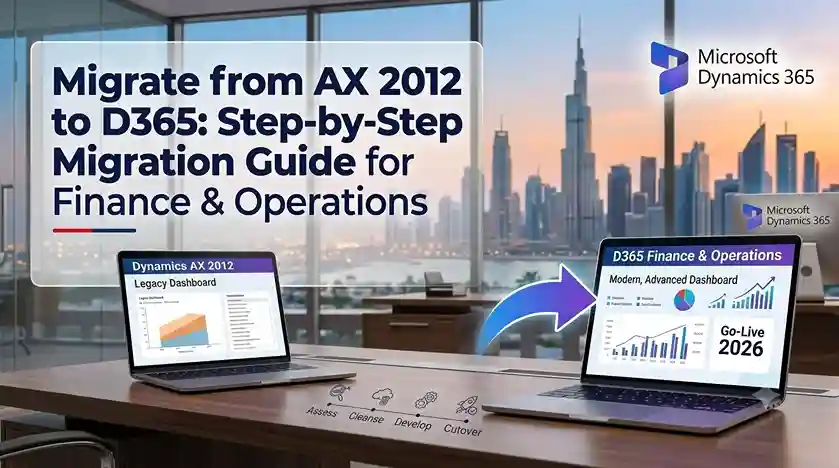
Microsoft ended mainstream support for Dynamics AX 2012 in 2021, and extended support ends in 2026. If your organization still runs AX 2012, the window to migrate on your own terms is closing fast.
Unlike AX 2009, AX 2012 has a defined upgrade path to Dynamics 365 Finance & Operations. This guide walks through the migration process step by step, so you can plan with confidence.
Why Migrate from AX 2012 to D365 Now
AX 2012 was a powerful ERP for its time, but it cannot support modern business demands:
- Support ending in 2026 — no security patches or compliance updates after that
- No cloud capability — AX 2012 is on-premise only
- Rising infrastructure costs — server maintenance, licensing, and IT overhead grow annually
- Limited integration — no native connection to Power Platform, Azure AI, or Microsoft 365
- Talent shortage — AX 2012 developers are retiring or reskilling
Migrating to D365 Finance & Operations delivers continuous updates, cloud scalability, embedded analytics, and a platform Microsoft will support for years.
Understanding the AX 2012 to D365 Migration Path
This is not a simple version upgrade. Microsoft provides tools and a defined process, but the migration requires careful planning.
Key point: The official path is AX 2012 → AX 2012 R3 → D365 Finance & Operations. If you run an earlier AX 2012 version (RTM, Feature Pack, R2), you must first upgrade to R3 before migrating to D365.
The process is best understood as a data migration and reimplementation rather than a technical upgrade. Your data moves; your customizations largely do not.
Step-by-Step Migration Guide
Step 1: Assess Your Current AX 2012 Environment
Document everything:
- Which AX 2012 version you run (RTM, FP, R2, R3)
- Modules in use (Finance, Supply Chain, Manufacturing, Retail)
- Customizations and their business purpose
- Integrations with banking, tax, CRM, and third-party systems
- Data volume — master records, open transactions, historical data
- User count and role distribution
This assessment determines your migration scope and effort.
Step 2: Build the Business Case
Compare the cost of migrating against the cost of staying on AX 2012. Include:
- License and infrastructure savings from moving to cloud
- Reduced IT maintenance overhead
- Productivity gains from modern UI and automation
- Risk cost of running unsupported software after 2026
Most organizations find migration pays back within 2–3 years.
Step 3: Decide What to Migrate
Not everything should move. Classify your data:
- Master data (customers, vendors, items, chart of accounts) — migrate
- Open transactions (unposted invoices, open POs, balances) — migrate
- Historical transactions — archive or migrate selectively based on reporting needs
- Obsolete records — do not migrate
Migrating clean, relevant data reduces effort and improves post-go-live performance.
Step 4: Review Customizations
This is where AX 2012 migrations succeed or fail. D365 Finance & Operations supports extensions instead of over-layering — a fundamental architectural change.
For each customization, ask:
- Does D365 standard functionality already cover this?
- Can configuration replace the customization?
- Can a Power Platform app handle this instead?
- Is the customization still needed at all?
Typically, 60–70% of AX 2012 customizations can be eliminated.
Step 5: Choose Your Migration Approach
Three options exist:
Full reimplementation — rebuild everything in D365 cleanly. Highest effort, best long-term result.
Data-only migration — migrate data and adopt D365 standard processes. Balanced approach for most businesses.
Phased migration — go live with core finance first, then add supply chain and other modules. Reduces risk and spreads cost.
Most mid-market organizations choose data-only migration or a phased approach.
Step 6: Design the D365 Solution
Map your AX 2012 processes to D365 Finance & Operations capabilities. Configure the chart of accounts, financial dimensions, tax setup, and reporting structure. Design integrations using Dataverse, dual-write, and Azure services.
Step 7: Migrate Data
Use Microsoft’s Data Management Framework (DMF) and Data Entities to extract AX 2012 data, cleanse it, and load into D365. Test migration repeatedly in a sandbox before production cutover.
Step 8: Test and Validate
Conduct:
- Unit testing of configured modules
- Integration testing with connected systems
- User acceptance testing with actual business users
- Performance testing with production-scale data volumes
Document and resolve every issue before go-live.
Step 9: Train Users and Cut Over
Train users by role on D365 workflows. Prepare a detailed cutover plan covering data freeze, final migration, and validation. Schedule go-live during a low-activity business period.
Step 10: Hypercare and Optimization
Provide 4–12 weeks of intensive post-go-live support. Monitor system performance, resolve issues quickly, and gather user feedback for continuous improvement.
How Long Does the Migration Take?
| Company Size | Typical Timeline |
|---|---|
| Small (1 entity, core finance) | 6–9 months |
| Mid-market (multi-module) | 9–15 months |
| Enterprise (multi-entity, global) | 15–24 months |
Timeline depends on module scope, customization complexity, data volume, and integration requirements.
Choosing a Migration Partner
Your partner determines whether your AX 2012 migration finishes on time and on budget. Look for:
- Proven AX 2012 to D365 migration experience — not just D365 implementation
- Current Microsoft Solutions Partner designations
- Industry-specific migration references
- Defined data migration methodology
- Strong post-go-live support model
Final Thoughts
Migrating from AX 2012 to D365 Finance & Operations is a significant project, but it is also an opportunity to modernize processes, eliminate legacy customizations, and build a foundation for future growth. With support ending in 2026, the businesses that plan now will migrate calmly; those that wait will migrate under pressure.
Start with an assessment. Build the business case. Choose an experienced partner. Then execute methodically.
Ready to migrate from AX 2012 to D365? Contact a certified Microsoft partner for a migration assessment and roadmap.

