
Welcome to Trident Information Systems!
Write us to - info@tridentinfo.com
Let's Socialize

Copilot

Copilot in Business Central automating tasks and improving productivity with AI-powered insights.

The Secret Side of Copilot in Business Central: 9 Features That Drive Real Productivity

You’re using Copilot in Business Central – but are you using it to its full potential? Most users barely scratch the surface of what this AI assistant can actually do. In this guide, we’ll uncover 9 hidden features that will transform how you work daily. Most Business Central users think Copilot is just for chat. Wrong. These 9 hidden features automate repetitive tasks, accelerate workflows, and save 15+ hours per week – but 80% of users don’t know they exist. Everyone knows Copilot can answer questions. “Show me last quarter’s revenue.” “Who’s our top vendor?” Basic stuff. But that’s just the tip of the iceberg. Microsoft Business Central’s Copilot has nine lesser-known capabilities that transform how finance teams, accountants, and operations managers work. We’re talking about features that automatically reconcile bank transactions, generate entire journal entries from natural language, analyze vendor payment patterns, and even predict cash flow risks – all without writing a single formula or report. This isn’t theoretical. Companies using these features report 15-25 hours saved per week across their finance teams. The catch? Most users don’t know these capabilities exist because they’re not surfaced in the obvious places. Copilot in Business Central: 9 Secrets Microsoft Doesn’t Tell You Most users barely scratch the surface of what Copilot in Business Central can actually do. After deep testing, we’ve uncovered 9 hidden features that drive real productivity – and most of them aren’t even mentioned in Microsoft’s official documentation. Let’s fix that. Here are the 9 secret Copilot features you should be using today. 1. Intelligent Bank Reconciliation Matching Stop manually matching transactions – let Copilot do it with 95%+ accuracy The Old Way (Painful) You import 500 bank transactions. Now you manually scroll through open invoices and payments, trying to match “ACH PMT 1234” to “Invoice #INV-5678” while cross-referencing amounts, dates, and vendor names. Takes hours. Mistakes happen. Month-end closes are delayed. The Copilot Way (Effortless) Copilot uses AI pattern recognition to automatically match bank transactions to open entries based on: How to Use It Time Saved 2-4 hours per bank reconciliation (typical 500-transaction import). On monthly basis: 8-16 hours saved. Pro Tip First time using Copilot matching, expect 70-80% auto-match rate. After 3-4 months of “training” (Copilot learning from your approvals/corrections), accuracy jumps to 90-95%. The AI literally gets smarter the more you use it. 2. Natural Language Journal Entry Creation Describe what you want in plain English – Copilot writes the journal entry What It Does Instead of manually creating general journal entries (selecting accounts, entering debits/credits, balancing), you just tell Copilot what happened in plain language. Real Examples Example 1: Simple Expense You type: “Record $1,500 office supplies purchase paid by corporate credit card” Copilot creates: Debit: Office Supplies Expense (6200) – $1,500Credit: Credit Card Payable (2100) – $1,500 Example 2: Complex Transaction You type: “Prepaid annual insurance of $12,000 starting January 1, amortize monthly” Copilot creates: Debit: Prepaid Insurance (1300) – $12,000Credit: Cash (1000) – $12,000 Plus: Sets up recurring monthly journal to expense $1,000/month Example 3: Accrual Entry You type: “Accrue $8,500 for consultant services received in December but not yet invoiced” Copilot creates: Debit: Consulting Expense (6400) – $8,500Credit: Accrued Expenses (2300) – $8,500 What Makes This Powerful Time Saved 5-10 minutes per complex journal entry. For teams posting 20-30 manual entries per month: 2-5 hours saved. Important Always review Copilot-generated entries before posting. While accuracy is high (90%+), AI can misinterpret ambiguous descriptions. Think of Copilot as a smart assistant, not a replacement for accounting judgment. 3. Vendor Payment Pattern Analysis Uncover hidden insights about vendor relationships and payment behavior What It Reveals Copilot analyzes your entire vendor payment history and surfaces patterns you’d never spot manually: Early Payment Opportunities Identifies vendors offering 2/10 Net 30 terms where you’re consistently missing the discount. Late Payment Risk Flags vendors where you’re frequently paying late, risking late fees or damaged relationships Duplicate Payments Detects potential duplicate payments (same vendor, similar amount, close dates) Spending Trends Shows vendor spending patterns over time – which vendors are growing/shrinking How to Access It In the Vendor List or Purchase Analysis pages, ask Copilot: Real Business Impact A mid-size manufacturer used Copilot vendor analysis and discovered: Total recovered/optimized in 6 months: $32,200 Time Saved 3-5 hours monthly on manual AP analytics, exception reporting, and vendor relationship reviews. 4. Smart Item Description Generation Auto-create SEO-optimized, detailed product descriptions from basic item data The Problem You have 500+ items in inventory. Half have descriptions like “Widget A” or “Part #12345” – completely useless for sales, e-commerce, or even internal staff trying to understand what they’re looking at. The Copilot Solution Select any item (or bulk-select multiple items) and Copilot generates: How to Use It Pro Tip for E-Commerce If you sync Business Central items to Shopify, WooCommerce, or other e-commerce platforms, Copilot-generated descriptions include SEO keywords and formatting that improves product page rankings. One client saw 18% increase in organic product search traffic after bulk-updating 300 item descriptions with Copilot. Time Saved 2-3 minutes per item description. For 500-item catalog: 16-25 hours total (one-time) + ongoing time saved for new items. 5. Cash Flow Forecasting & Risk Alerts Predict cash crunches before they happen – proactively manage working capital What It Does Copilot analyzes your cash position, upcoming receivables, payables, and historical patterns to forecast cash flow up to 90 days out and flag potential shortfalls. Data Sources Copilot Uses Example Alert Copilot Warning (Week of March 15): “Cash balance projected to drop below $50,000 minimum threshold on March 22. Contributing factors: $180,000 in vendor payments due March 20, while only $95,000 in receivables expected to clear before then. Consider: (1) Delay non-critical vendor payments, (2) Follow up on overdue invoices, or (3) Draw on line of credit.” Proactive Actions Copilot Suggests Time Saved 4-6 hours weekly on manual cash flow forecasting, Excel models, and scenario planning. Plus: avoids costly cash shortfalls. CFO Insight “Copilot’s cash flow alerts have caught 3 potential shortfalls this year before they became critical. We avoided $15K in emergency line-of-credit fees and maintained better vendor relationships by paying on time.” – CFO, $12M manufacturing company 6. Automated

The Secret Side of Copilot in Business Central: 9 Features That Drive Real Productivity Read More »

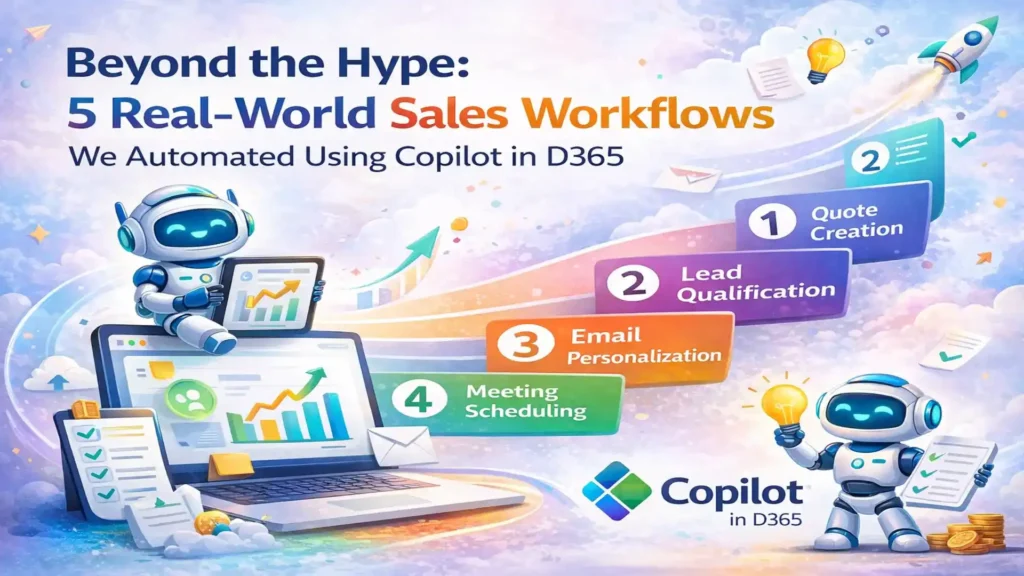
Sales team using Copilot in Dynamics 365 to automate CRM workflows and analyze customer data.

Beyond the Hype: 5 Real-World Sales Workflows We Automated Using Copilot in D365

Actual automation use cases from our clients – complete with before/after metrics, implementation steps, and honest assessments of what Copilot does well (and where it still needs help). Every vendor is talking about AI. Microsoft’s pitching Copilot as a revolution in sales productivity. Your LinkedIn feed is full of posts about “AI-powered everything.” But when you ask sales leaders what they’ve actually automated with Copilot, you get vague answers about “email summaries” and “meeting notes.” Here’s the truth: Copilot in Dynamics 365 Sales is powerful, but it’s not magic. It won’t transform your sales process overnight. It won’t fix bad data or broken workflows. And it definitely won’t replace the need for good salespeople who understand their customers. What it will do – when implemented thoughtfully – is eliminate hours of administrative busywork, surface insights your reps would have missed, and help your team sell faster without working harder. This article shares five specific workflows we’ve automated for clients using Copilot in Dynamics 365 Sales. These aren’t theoretical use cases from Microsoft’s marketing materials. They’re real implementations with actual before/after metrics, honest assessments of what worked (and what didn’t), and step-by-step breakdowns you can replicate. 1. Automated Lead Qualification & Scoring The Problem A B2B software company was generating 400-500 inbound leads per month from multiple sources (website forms, trade shows, webinars, paid ads). Their SDR team of 4 people was spending 6-8 hours per day manually researching leads, reading company websites, checking LinkedIn, and trying to determine which leads were worth calling first. Result: High-value leads sat in the queue for 2-3 days before anyone reached out. By the time they got a call, 30% had already engaged with a competitor. Before Copilot Manual process: SDR receives lead → Googles company → Checks LinkedIn → Reads “About Us” page → Estimates company size and budget → Manually scores lead in spreadsheet → Enters score into D365 → Finally calls lead (24-72 hours later) With Copilot Automated process: Lead enters D365 → Copilot enriches with firmographic data (revenue, employee count, industry, tech stack) → Analyzes fit against ideal customer profile → Auto-assigns lead score → Routes to appropriate SDR → SDR calls within 2 hours with context already loaded How We Implemented It The Results Measured Impact (90 Days Post-Implementation) 87% Reduction in lead research time 2 hrsAverage lead response time (vs. 48 hrs before) 42 %Increase in lead-to-opportunity conversion $180K Additional pipeline value in first quarter What Didn’t Work Initially Copilot’s auto-scoring was too aggressive at first — it scored leads based on company size alone, ignoring buying signals. We had to refine the criteria twice before it matched our SDRs’ judgment. Also, data enrichment only works if the lead provides a company email (not Gmail/Yahoo). We now route personal email leads to a separate qualification flow. 2. Intelligent Email Follow-Up & Next-Best-Action Recommendations The Problem A manufacturing equipment distributor’s sales reps were managing 40-60 active opportunities each. They’d send a proposal, schedule a demo, or have a discovery call — then forget to follow up. Opportunities would go stale for 2-3 weeks before anyone noticed. The sales manager was manually reviewing pipeline every Monday and sending “you need to follow up on X” reminders to reps. Reps complained they couldn’t remember the context of every conversation when they did follow up weeks later. How We Automated It Before Copilot Rep sends proposal → Gets busy with other deals → Forgets to follow up → Customer goes silent → Two weeks later, sales manager asks “What happened with ABC Corp?” → Rep scrambles to piece together what happened → Customer already bought from competitor With Copilot Rep sends proposal → Copilot reminds rep to follow up in 3 days → Suggests email: “Hi [Name], following up on the proposal we discussed for [specific pain point]” → Rep reviews, edits slightly, sends → Customer responds with questions → Copilot flags as “hot opportunity” and moves to top of rep’s queue The Results Measured Impact (6 Months Post-Implementation) 73% Reduction in stale opportunities (no activity 14+ days) 3.2x More follow-up touches per opportunity 18% Improvement in win rate 4.5 hrs Saved per rep per week (no more manual pipeline review) Unexpected Benefit Reps started using Copilot-generated email summaries to brief their managers before pipeline reviews. Instead of the manager asking “What’s the status of this deal?”, reps could instantly share a 3-sentence AI summary. This cut pipeline review meetings from 90 minutes to 30 minutes and made them far more strategic. 3. Automated Meeting Prep & Post-Meeting Follow-Up The Problem An enterprise software company’s AEs were running 8-12 customer meetings per week. They’d show up to calls without reviewing the customer’s history, previous conversations, or open issues. Customers would say “I mentioned this on our last call” and the AE would have to ask them to repeat it. Post-meeting, reps were supposed to send recap emails and update D365, but often forgot or did it days later when details were fuzzy. How We Automated It Implementation Steps Enable Copilot for Sales in D365 + Teams Integration Connected Copilot to Microsoft Teams for call transcription and recording access. Configured permissions so Copilot can read calendar events and D365 records. Define Meeting Brief Template Worked with sales team to determine what information they actually want to see before calls. Created template that pulls: customer industry, previous meeting notes (last 3 meetings), open opportunities, outstanding quotes, support ticket summary. Train Copilot on Recap Email Format Provided examples of good recap emails. Copilot learned the structure: brief thank you, summary of what was discussed, clear next steps, timeline/deadline if applicable. Set Up Competitive Intelligence Triggers Created list of competitor names and product names. When mentioned in meetings, Copilot tags the opportunity and pulls battlecard information from SharePoint. The Results Measured Impact (4 Months Post-Implementation) 92% Of reps now review meeting brief before every call 3.5 hrs Saved per rep per week (meeting prep + recap writing) 68% Increase in same-day meeting recaps (vs. 22% before) 34% Reduction in “Can you remind me what we

Beyond the Hype: 5 Real-World Sales Workflows We Automated Using Copilot in D365 Read More »

5 Ways Copilot in Dynamics 365 is Replacing Manual Data Entry Today

5 Ways Copilot in Dynamics 365 is Replacing Manual Data Entry Today

Introduction to Copilot in Dynamics 365 The rise of AI in business systems has completely changed how organizations operate. What used to take hours of manual data entry, corrections, and review can now be handled in seconds by intelligent tools. Microsoft Copilot in Dynamics 365 is one of the most transformative AI features in the modern ERP and CRM landscape. It helps businesses reduce repetitive work, increase accuracy, and improve efficiency across every department. Copilot doesn’t replace people—it eliminates tasks people never wanted to do in the first place. From creating records to extracting data from documents, the AI handles boring, error-prone work so employees can focus on higher-value activities. This shift is helping companies save time, cut costs, and improve decision-making with cleaner, more reliable data. Most importantly, Copilot helps organizations move toward a smarter, more automated future. Businesses no longer have to rely on manual typing, tab switching, or data rechecking. Instead, Copilot empowers every team to work faster and smarter with AI-driven automation. The Growing Need for Automation in ERP and CRM Automation is no longer optional—it’s essential for modern companies managing large volumes of information. Dynamics 365 users deal with invoices, leads, customer data, inventory updates, and financial transactions daily. Without automation, these processes can slow down the entire business. Increasing Volume of Business Data Every year, companies generate more data across more channels than ever before. Customer interactions, purchase orders, service requests, and inventory movements all add to the workload. Handling these inputs manually leads to delays, backlogs, and human fatigue. Automation through Copilot ensures businesses stay productive even as data grows exponentially. How Copilot Fits into Microsoft’s Intelligent Ecosystem Microsoft is building a fully connected digital environment where AI supports every workflow. Copilot sits at the center of this ecosystem, integrating with Microsoft 365, Teams, Power Automate, and Azure AI. This means businesses get an intelligent assistant that understands context, connects data, and enhances productivity across the entire organization. Way #1: Automated Data Extraction from Documents One of Copilot’s most powerful abilities is extracting information from documents instantly. Instead of manually typing details from PDFs, invoices, or emails, Copilot reads and interprets the data for you. How Copilot Reads and Interprets Data Copilot uses advanced natural language processing and machine learning to scan documents, identify key fields, and interpret their meaning. It recognizes totals, dates, vendor names, product codes, and even handwritten details. This eliminates the need for employees to copy and paste information into different fields. Real Examples from Finance, Sales, and Supply Chain In finance, Copilot extracts invoice numbers, amounts, tax details, and due dates. Sales teams can upload lead forms, and Copilot instantly creates new CRM entries. Supply chain teams benefit by extracting shipment details, quantities, and carrier information from bills of lading or delivery documents. This brings speed, accuracy, and consistency to every department. Benefits for Accuracy and Efficiency Manual typing leads to errors—misplaced digits, wrong names, or missing fields. Copilot dramatically reduces these issues. It ensures that extracted data is complete and accurate before saving it. This not only improves data quality but also speeds up approval workflows and improves compliance. Way #2: Auto-Filling Forms and Records Filling out forms is one of the most repetitive tasks in any ERP or CRM system. Copilot eliminates much of this work by automatically populating fields using existing information. Eliminating Repetitive Entry Tasks Whether you’re creating a sales order, a vendor record, an employee profile, or a customer service case, Copilot can fill in most of the details automatically. It learns patterns from past entries and applies the same logic to new records, reducing the time needed to complete forms manually. Smarter Form Completion Using Context Copilot understands the context of each form. For example, when creating a purchase order, it can fill in supplier details, address information, item descriptions, pricing, and payment terms based on previous transactions. This ensures consistency and reduces the number of fields employees have to handle manually. Impact on Productivity Across Departments By removing manual data entry, employees can focus on what matters most—building relationships, analyzing reports, and improving processes. HR professionals spend less time entering employee details. Finance teams work faster when creating vendor profiles. Sales teams can create quotes in minutes instead of hours. Copilot becomes a productivity multiplier. Way #3: Natural Language Data Entry Natural language data entry is one of the most exciting features of Copilot. Instead of navigating through long menus and forms, users simply speak or type instructions in plain English. Typing Instructions vs. Entering Raw Data Instead of filling out 30 fields manually, a user can type:“Create a new sales order for 150 units of Product A for customer Bright Retail.”Copilot understands the request, finds the customer, selects the product, and fills in all necessary fields. This eliminates the need for employees to remember where specific information goes. Conversational Inputs for Quick Record Creation Employees can also ask Copilot things like:“Add a new lead named Sarah Turner from TechNova.”“Update the address for vendor Omega Supplies.”“Create a follow-up task for tomorrow at 10 AM.”These conversational commands speed up tasks that would normally take minutes to complete. How Teams Save Time Using Plain-English Commands Natural language input saves hours weekly. Instead of switching screens, searching fields, or recalling menu paths, employees simply tell Copilot what to do. This reduces cognitive load and helps even new users work efficiently without extensive training. Way #4: Automated Data Validation and Corrections Manual data entry is prone to errors, even for experienced staff. Copilot solves this by validating data in real time. Preventing Human Errors Before They Happen Copilot checks fields and identifies inconsistencies instantly—before records are saved. This early detection prevents errors from spreading across the system, reducing rework and avoiding costly mistakes. Identifying Missing or Inconsistent Information Missing invoice totals, mismatched item quantities, duplicate records, or incorrect vendor information are common in manual entry. Copilot detects these issues, highlights them for the user, and often offers corrections automatically. Strengthening Data Quality Across the

5 Ways Copilot in Dynamics 365 is Replacing Manual Data Entry Today Read More »